Top 10 Most Useful XENEON EDGE Widgets in 2026
In our opinion, the best use for the XENEON EDGE isn’t treating it like a tablet or an iPad. It’s a way to get things off your main monitors without giving up how your setup looks or what it can do.
These ten widgets are in no particular order. We make some of these at Respawn Icons, but we’ve put this list together based on what we’ve found most useful on the Edge.


Music
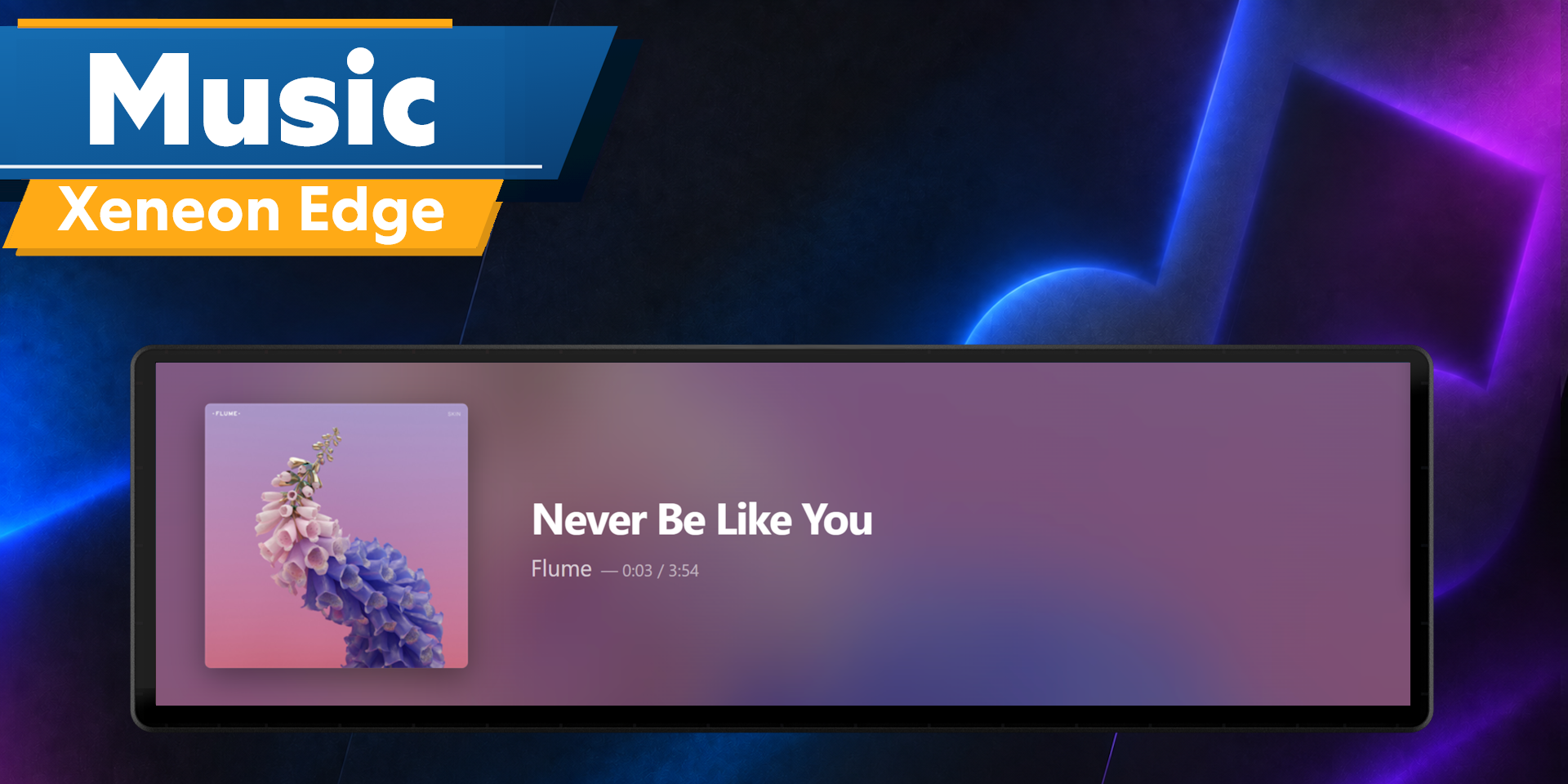
$6.99We like having album artwork and playback controls on the Edge without keeping a music app open on a main monitor. Our Music widget works with compatible Windows media players and has three looks: Classic, Pulse and Vinyl. We wanted it to feel simple, so we added familiar gestures that make it easy to move around without learning a whole new set of controls. That, along with choosing a look that suits your desk, is a big part of the appeal for $6.99.
For more access to your library, Sidekick for Apple Music and Sidekick for Spotify are also $6.99 each. Both give you more detailed controls, like browsing and searching for songs and choosing playlists, so it feels more like having your music account right on the Edge.
Other makers have their own take. Music Pro by FlowKits ($12) has artwork-based colors and several visualizers. StreamSpell’s Music Widget ($14) supports several services, while Now Playing by Scott Reed Development is free. They’re worth a look to see which controls and style you prefer.


NOTE//EDGE
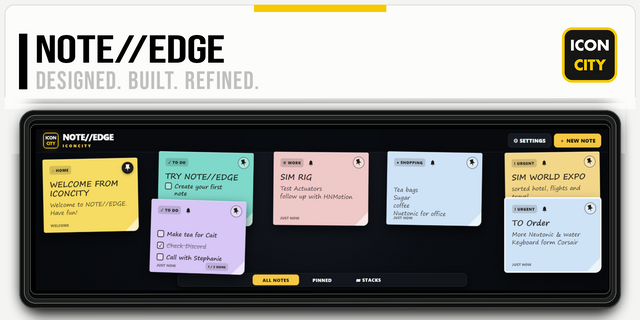
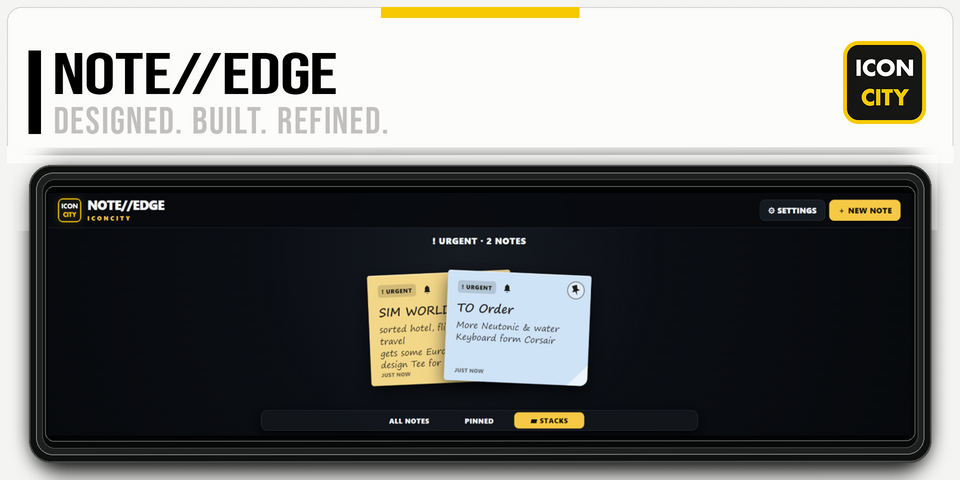
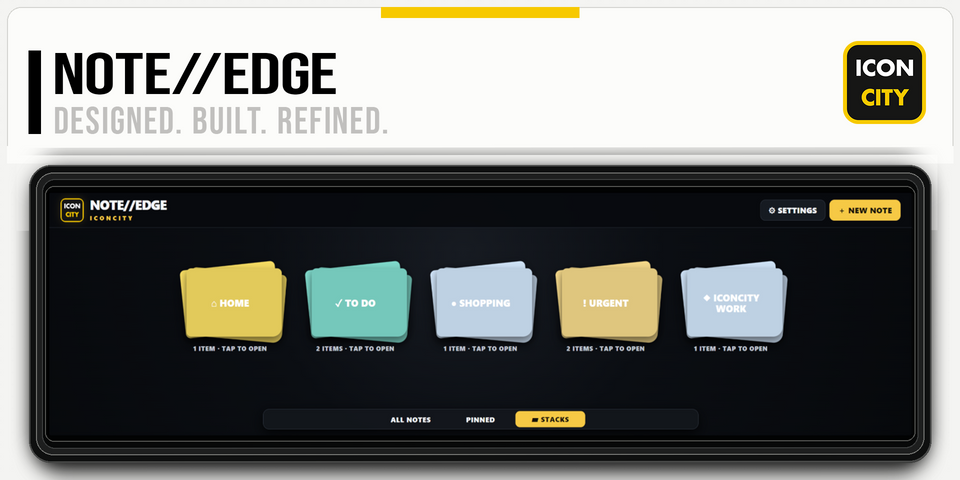
$9.36A short to-do list is a good fit for a screen that’s always in front of you. NOTE//EDGE by iConCity gives you sticky notes, pinned notes, stacks, checkboxes and timed alerts. We like how a small reminder can stay in sight without another window taking up your monitor.
iConCity also makes NOTE BOOK, with separate notebooks for typed notes and sketches if you want more room to write.
Our Reminders widget ($4.99) focuses on scheduled and repeating reminders. Desk Notes Lite by PackRat is free and supports up to eight notes or checklist entries. Whichever you choose, having a few things you need to remember just below your monitor is surprisingly handy.
Home Assistant Companion
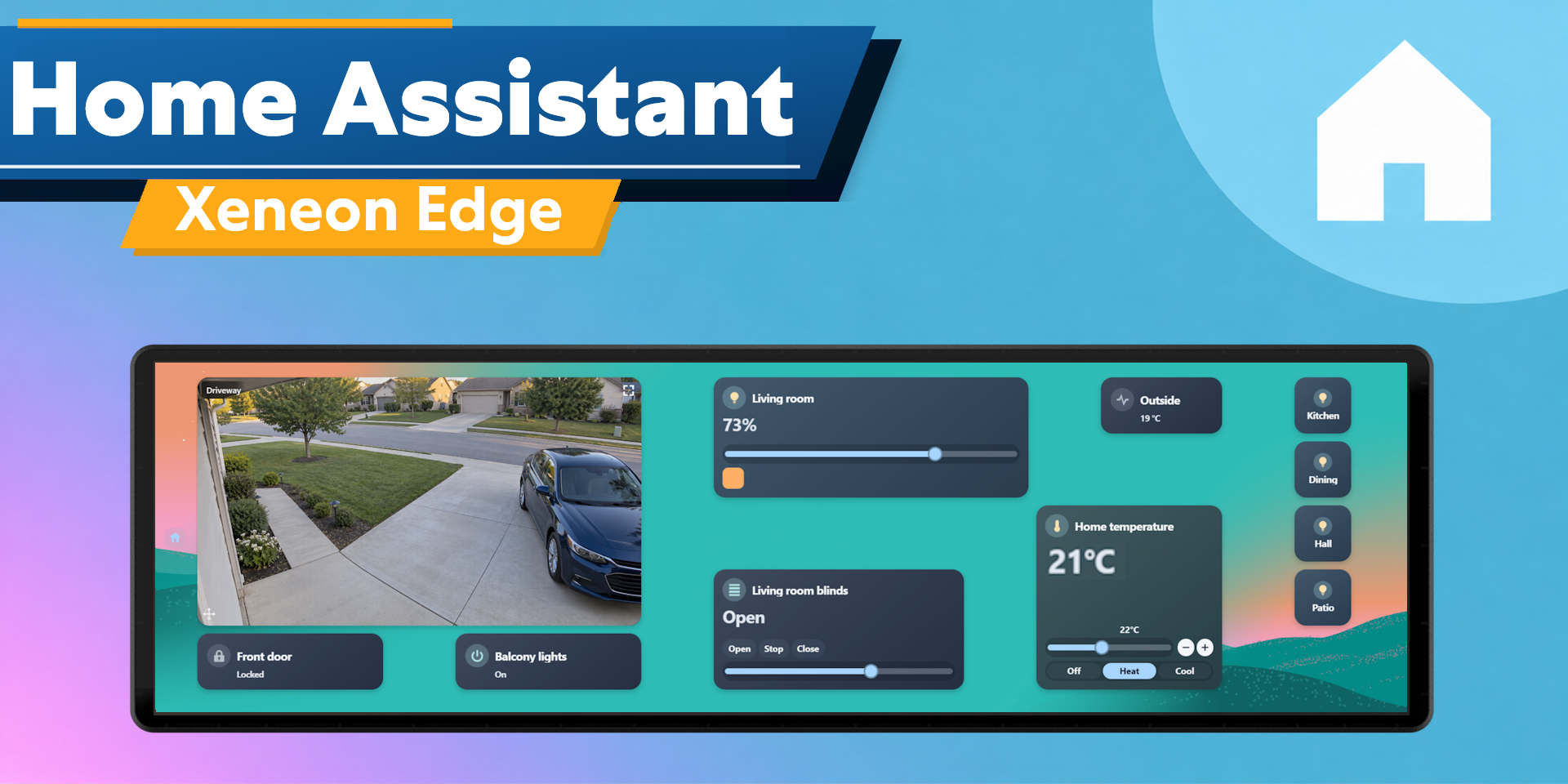
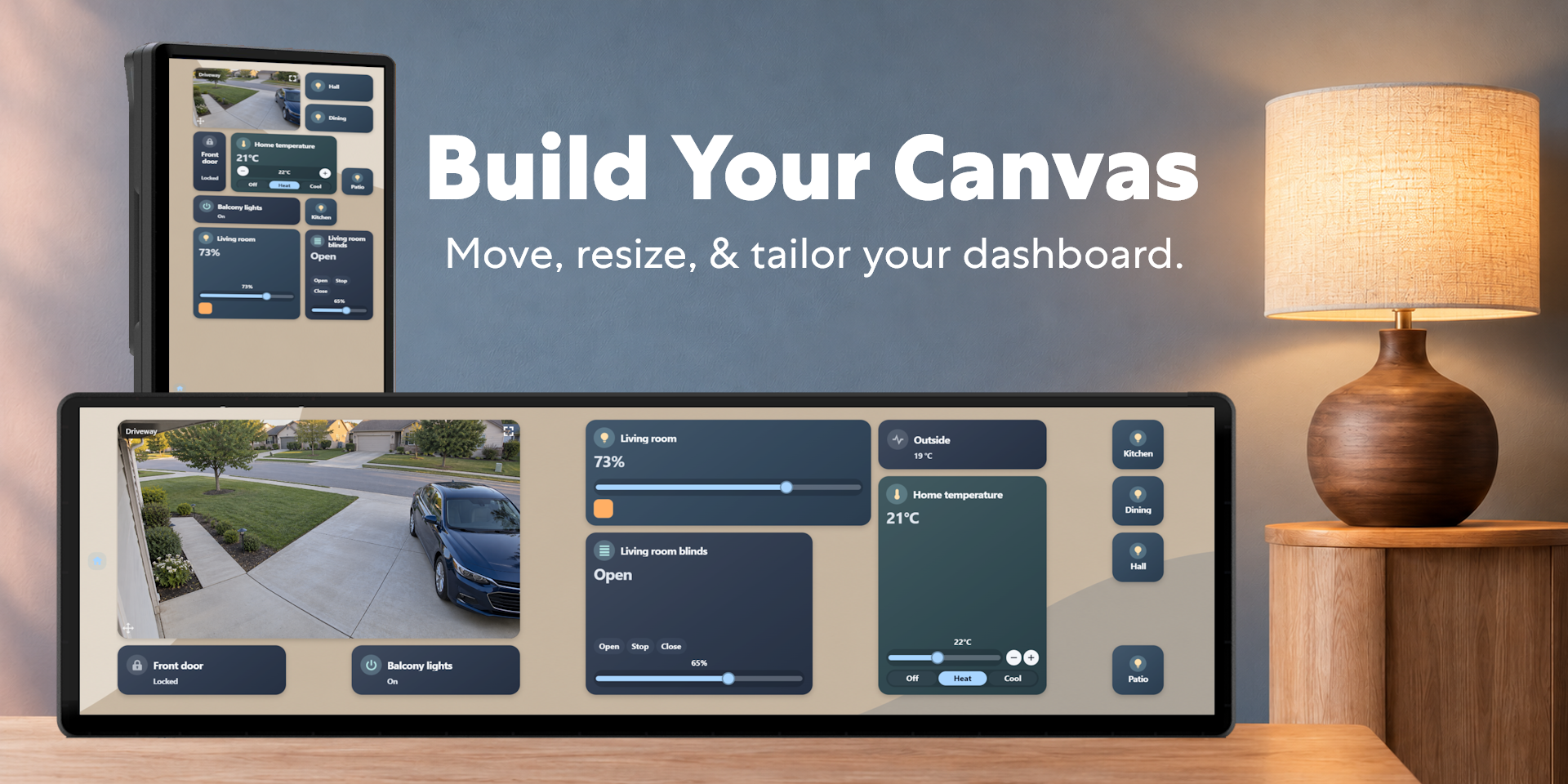
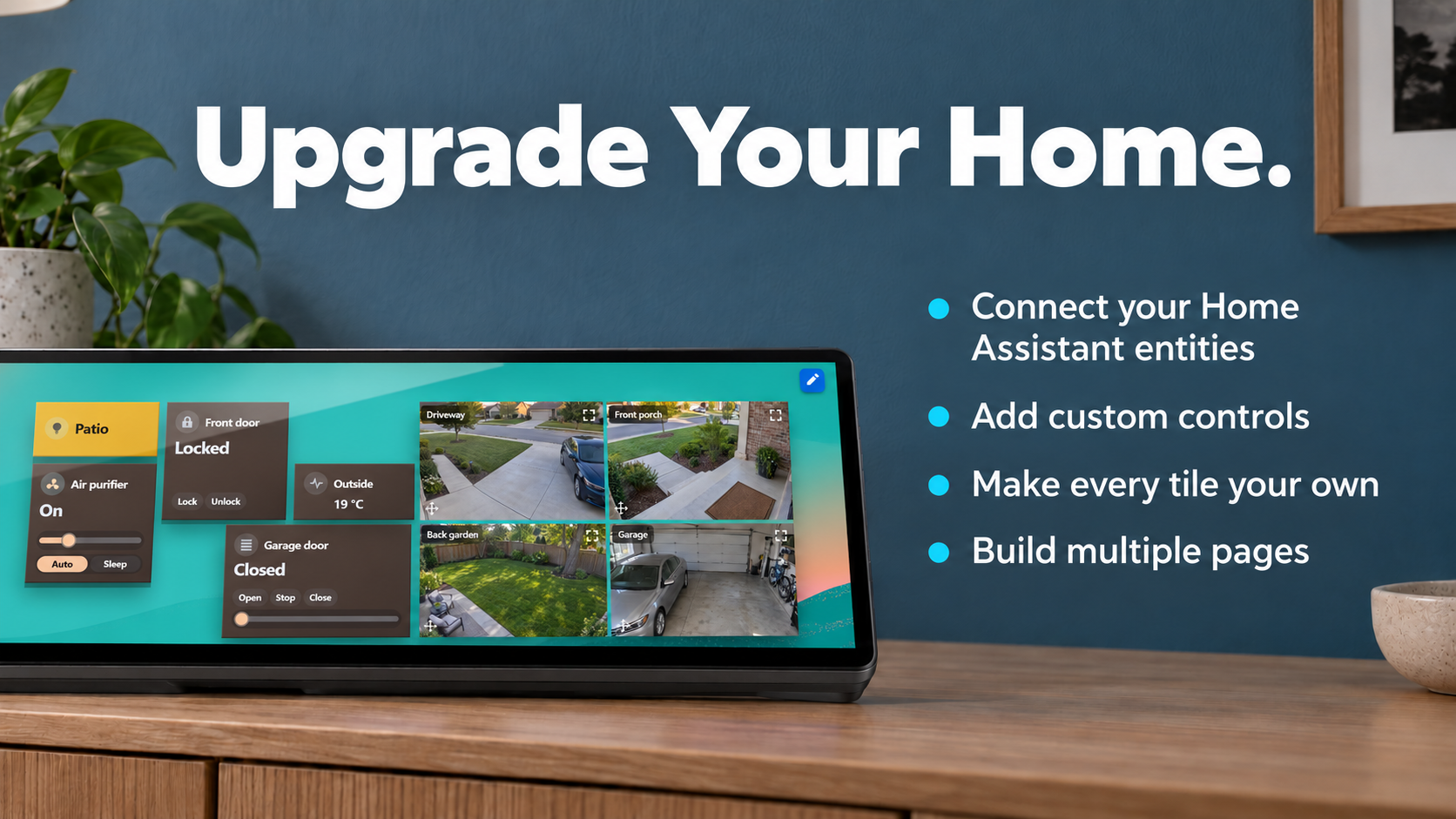
$19.99If you use Home Assistant, having your lights, thermostat and other device controls beside your PC is pretty convenient. Our Home Assistant Companion lets you choose supported devices and arrange their controls on the Edge.
You can move and resize cards, change names and icons, adjust colors and add custom actions. We like that it can be as small as a few lighting buttons or a larger panel with room temperature, media controls and device status.
That flexibility is what makes it useful to us: the controls you actually reach for can fit around the rest of your widgets. At $19.99, it’s one of the pricier picks here, so it makes the most sense if Home Assistant is already part of your day.
Sidekick for Discord
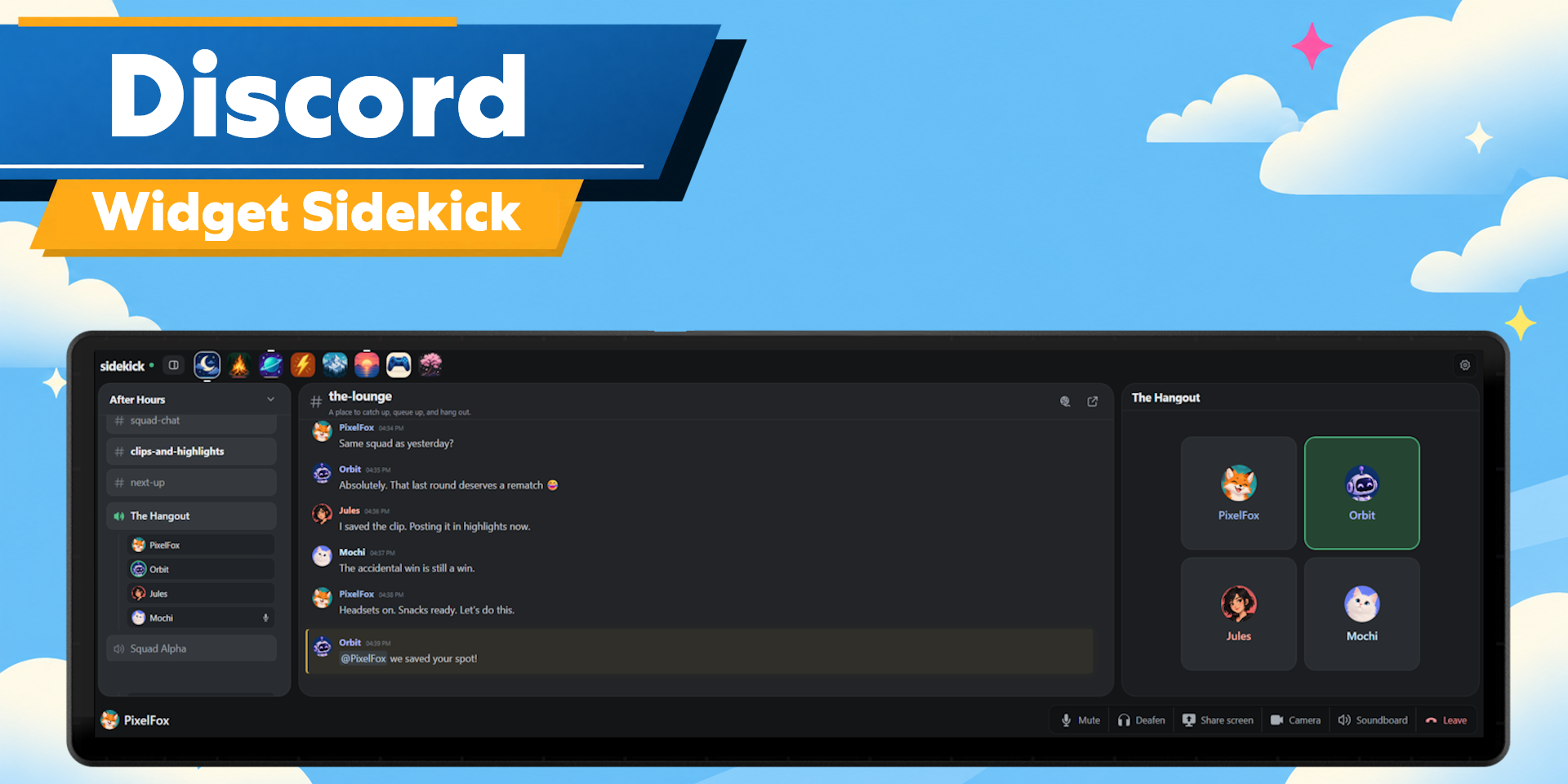
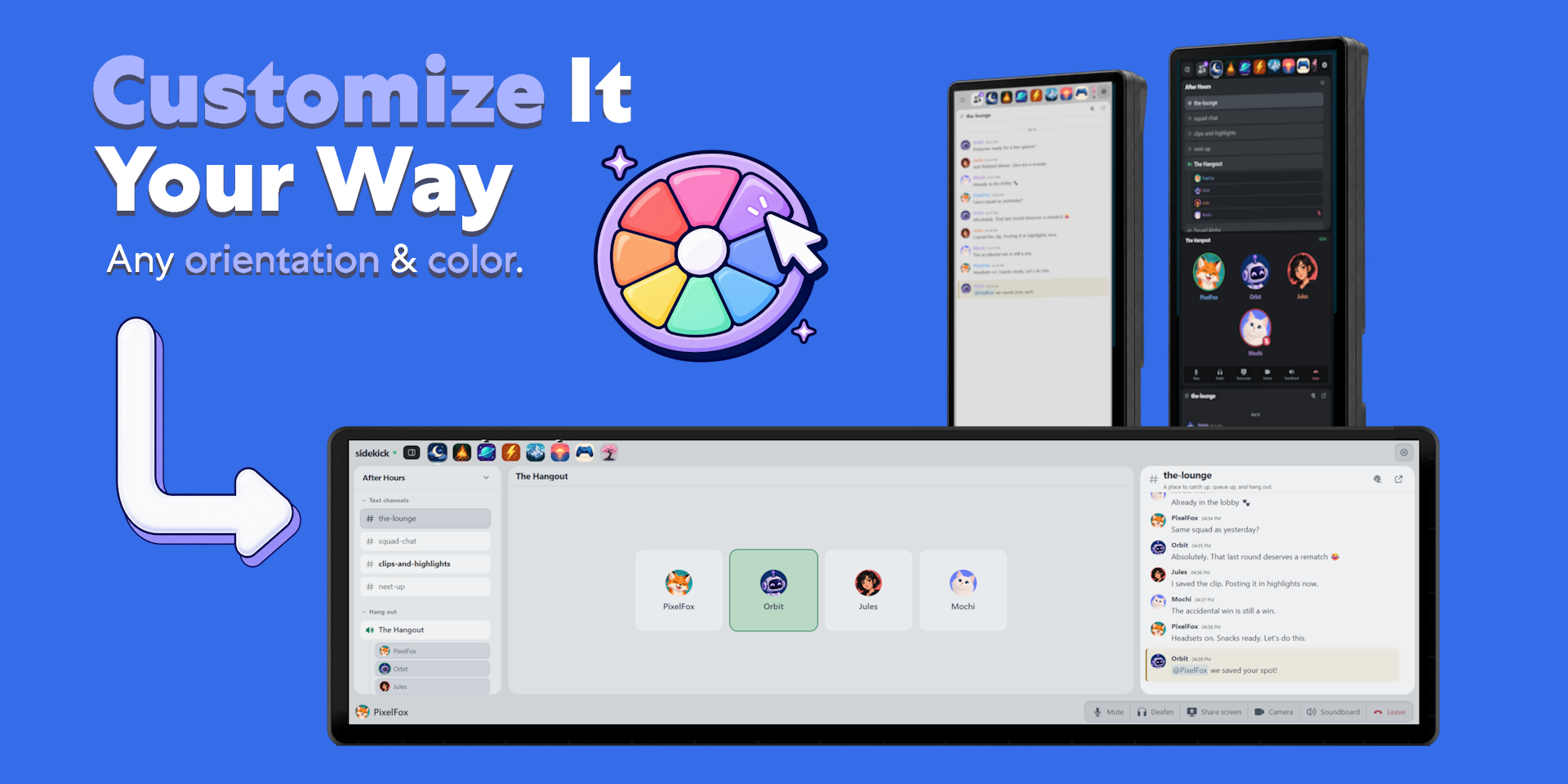
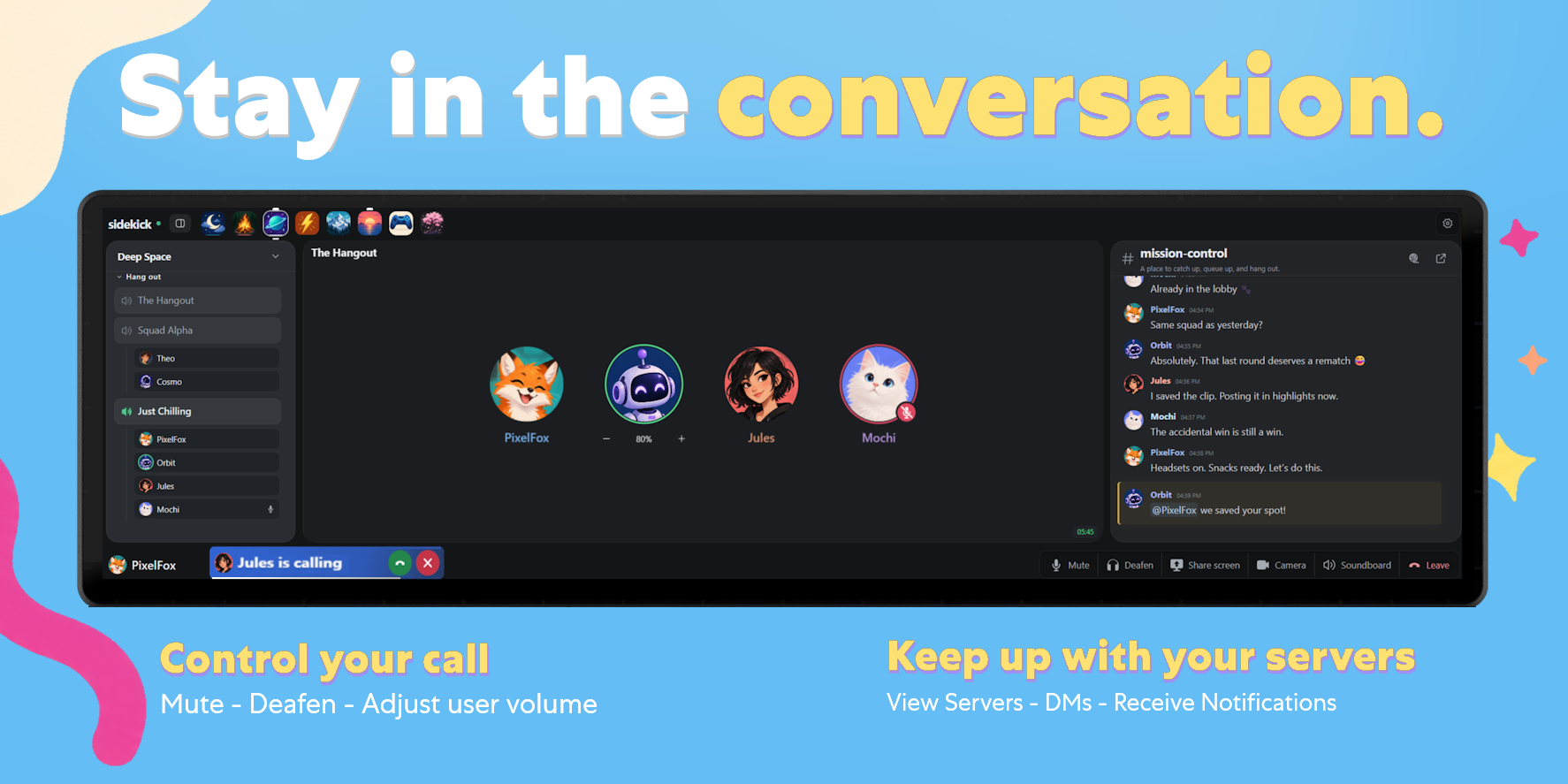
$7.99Our favorite thing about Sidekick for Discord is how familiar it feels. Servers, channels, chat and your active call follow a layout that feels like classic Discord, fitted to the Edge. You can choose and rearrange channels, adjust the space for chat or calls, and keep mute, deafen and individual volume controls close.
We like being able to check a channel or see who’s talking without giving Discord a whole monitor. The familiar styling makes it easy to settle into, and $7.99 feels fair for something you might use every day. Sidekick for Discord is also currently the highest-ranked paid widget in Elgato Marketplace’s Popular iCUE list.
The other Discord widgets have clever layouts too. Flow for Discord by FlowKits ($12) looks clean and uses a more compact layout that makes sense, though it may take some getting used to. My Discord Widget by StreamSpell ($14) and Deckord by Qaem ($10) are worth seeing as well.
-thumbnail-optimized-6d8cabc4-0caf-4972-85eb-570890ca7c9b.png)
-preview-optimized-1f8d89fd-75bc-4082-a666-a7c3a5a7915e.png)
-preview-optimized-6c68af55-1399-4866-81d2-500ebcfd5f1a.png)
Flow for Gmail
$15.00Flow for Gmail by FlowKits brings your inbox, Google Calendar and next-meeting countdown onto the Edge, with multiple accounts and a Google Meet join button. We like being able to check what needs attention without leaving Gmail open on another screen.
FlowKits spent hundreds of dollars on independent security testing for this. Its published documentation confirms the app is Google-verified and passed a CASA Tier 2 security assessment through TAC Security.
We went down this rabbit hole ourselves, but decided the juice wasn’t worth the squeeze. So honestly? Hats off to FlowKits. He put a lot of time and care into this, and took a financial risk to make it happen. It passes our eye test. Definitely check it out.
Gmail Connect by Qaem is another option. We haven’t evaluated its security, so we can’t comment on that aspect of it.
NEWS LIVE 2.0
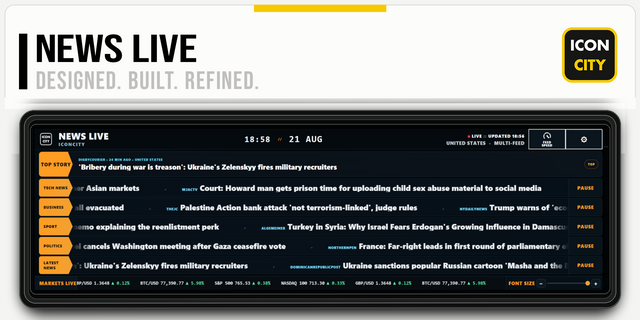
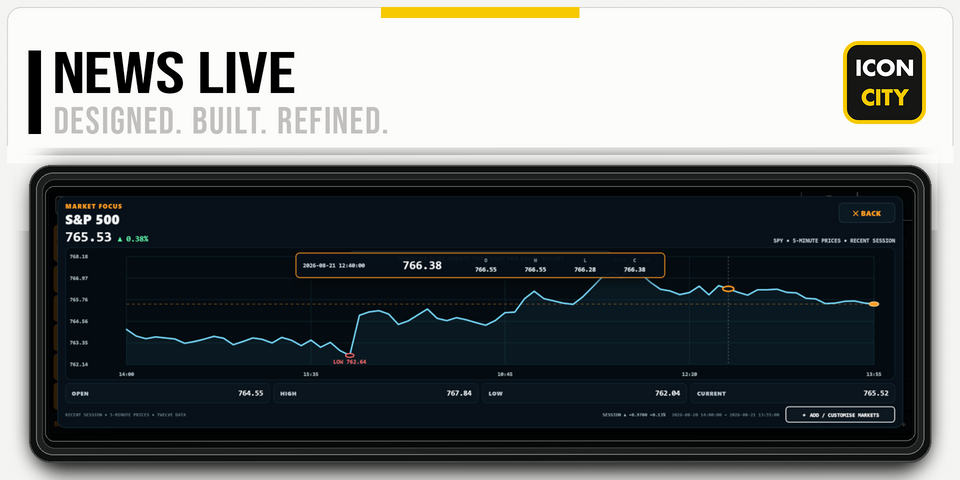
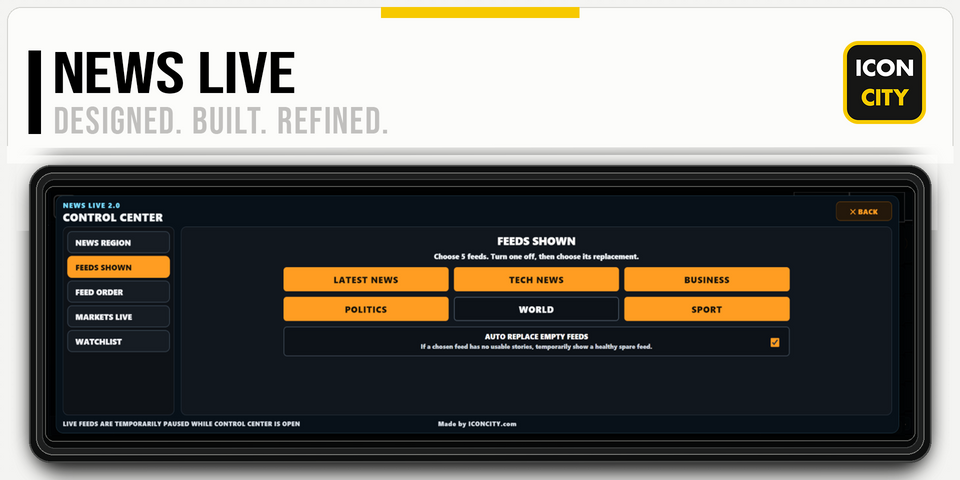
$6.69NEWS LIVE 2.0 by iConCity puts headlines on the Edge, with UK, US and World editions and categories including technology, business, politics and sport. Feeds refresh in the background, and you can reorder them, hide unwanted ones and adjust how quickly they move.
We like this because it suits a quick glance. You can see what’s happening while your main monitors are busy, then tap a headline to open the full story on your PC.
At $6.69, it’s a nice fit if you enjoy having the news nearby. There’s no need to keep a news page open all day or treat the Edge like a tablet to get something useful from it.


Steam Library
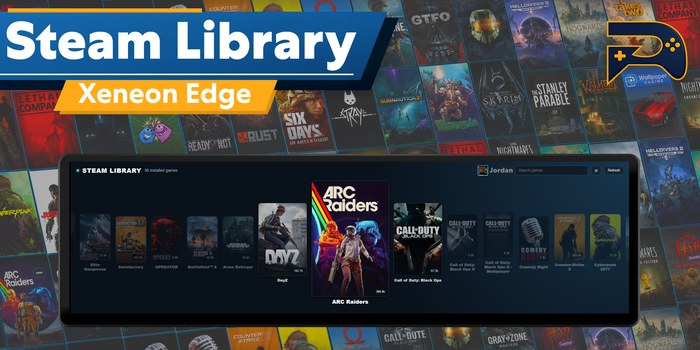
$11.99There’s something satisfying about browsing game covers on the Edge. Our Steam Library widget shows your installed games and lets you launch them through Steam, with a poster grid or showcase view, favorites, hidden games and search.
We like the mix of looks and usefulness here. The artwork suits a gaming setup, while download progress and speed give you something helpful to glance at while waiting for an update.
Respawn Companion, our desktop hub for connecting and managing supported Respawn Icons widgets, detects your installed games. An optional Steam API key adds extra profile and library information. For us, the appeal is simply having a little place to browse what to play next without opening the full library on a main screen.
Volume Mixer
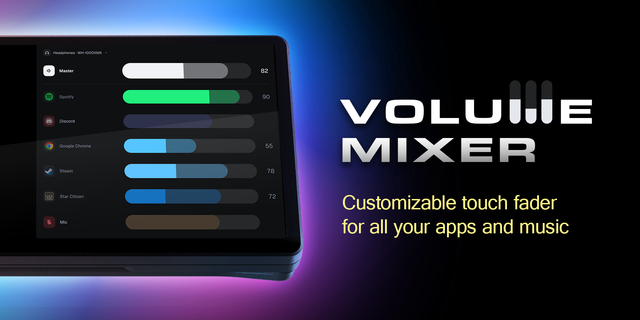
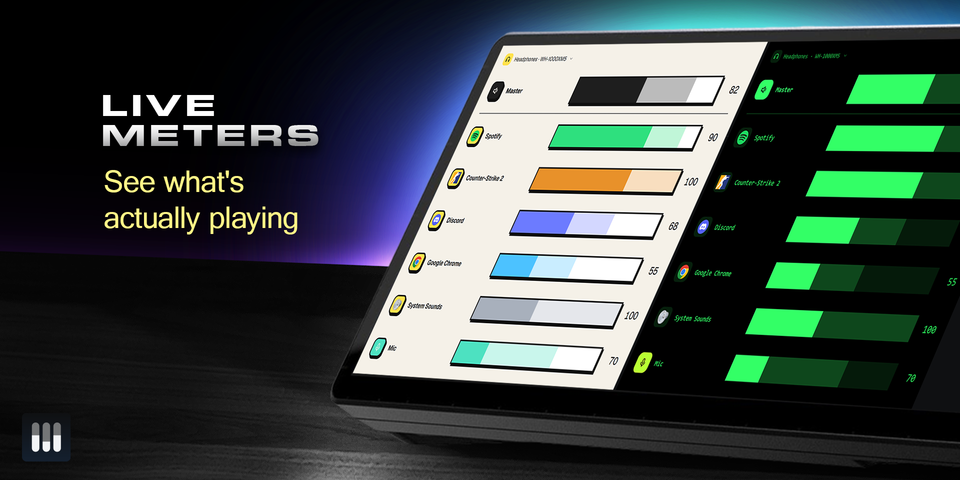
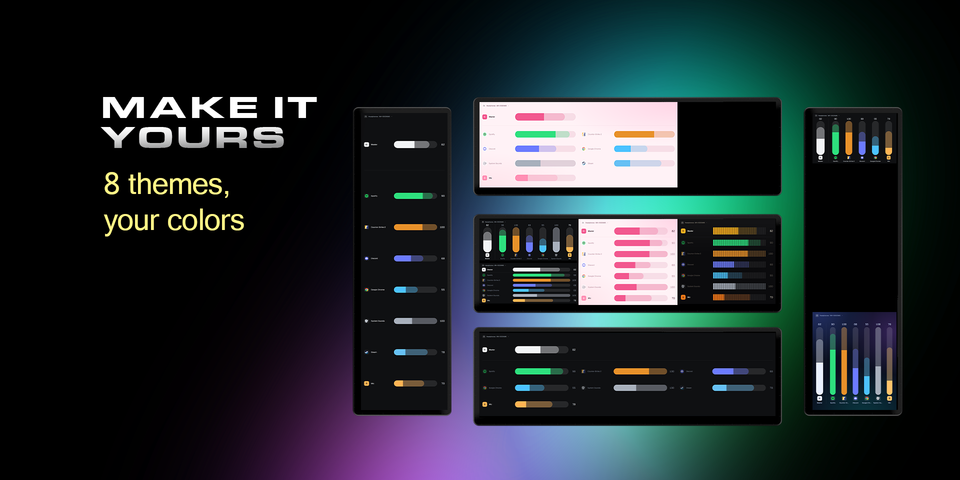
$5.00Volume Mixer by FlowKits gives apps their own touch faders, so you can lower a game, raise your music or mute a browser without opening the Windows mixer. It includes live meters, microphone controls and output-device switching, with faders arranged in rows or columns.
We like how direct it is: find the app, move its fader, carry on. Tapping an app’s icon mutes it too.
Our Control Center also has app volume controls, but audio is the whole purpose of FlowKits’ widget. Its layout and controls give mixing more attention, which makes sense if that’s what you mainly want from the Edge. At $5, it’s an affordable addition.
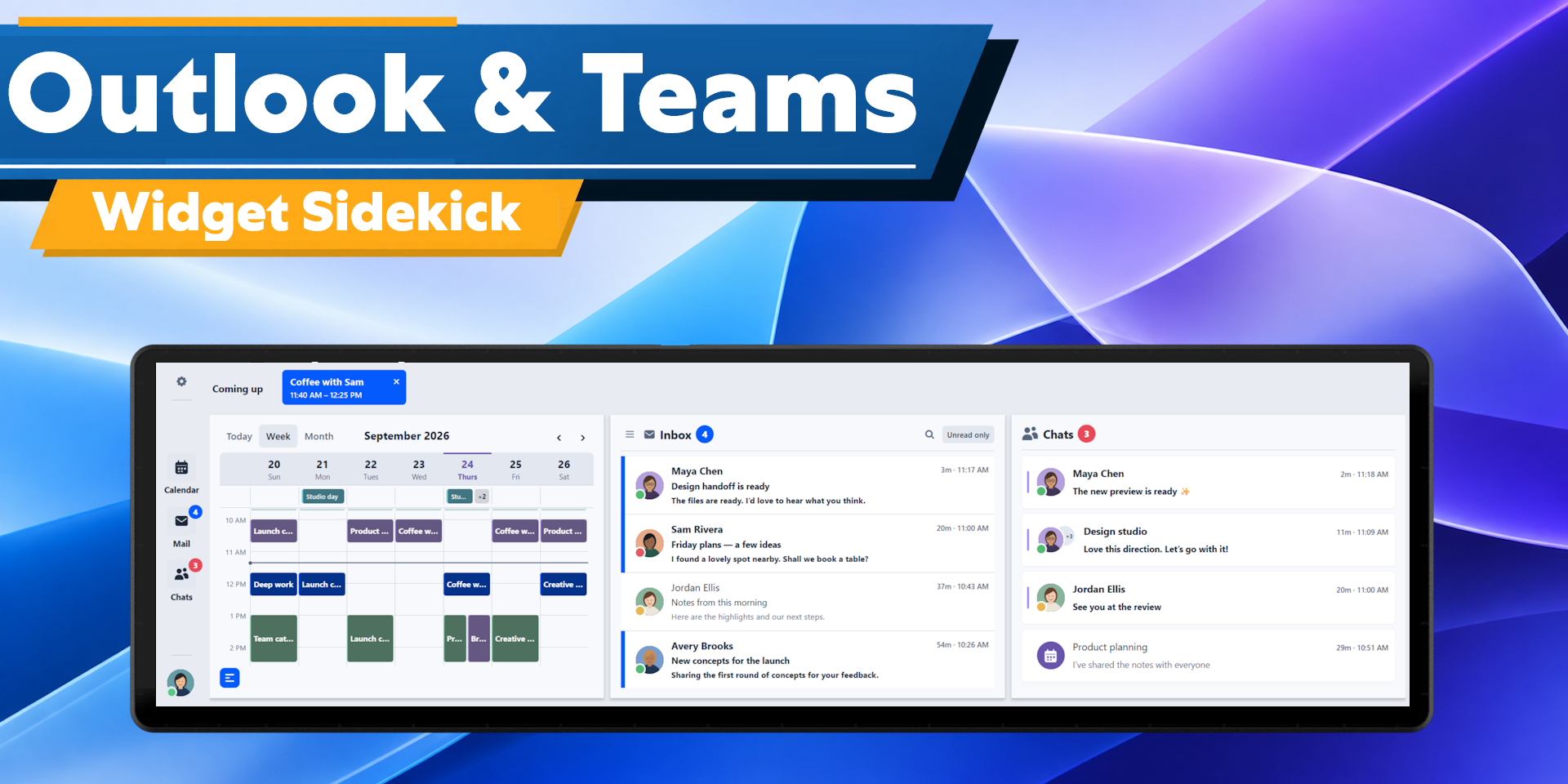
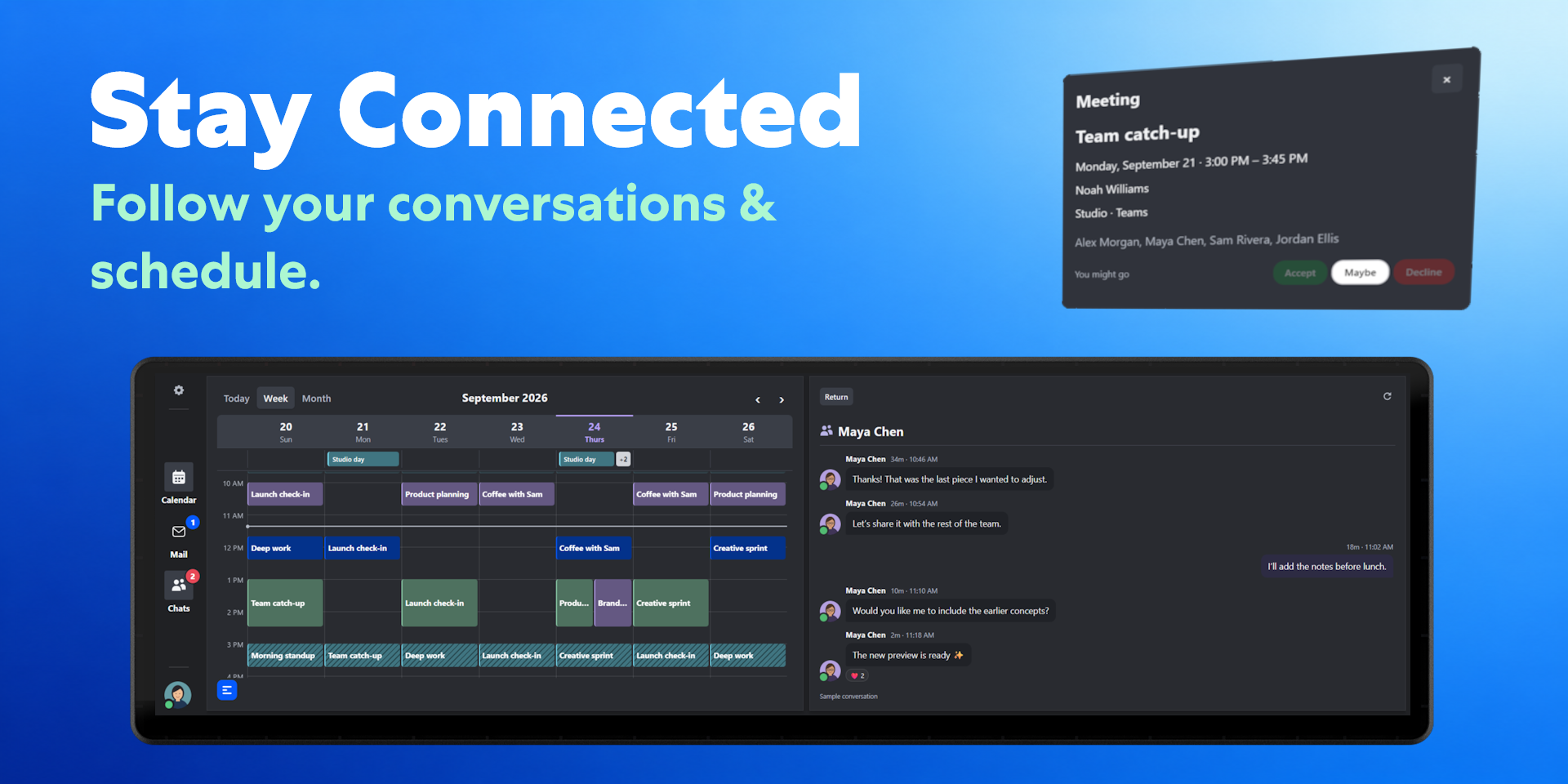
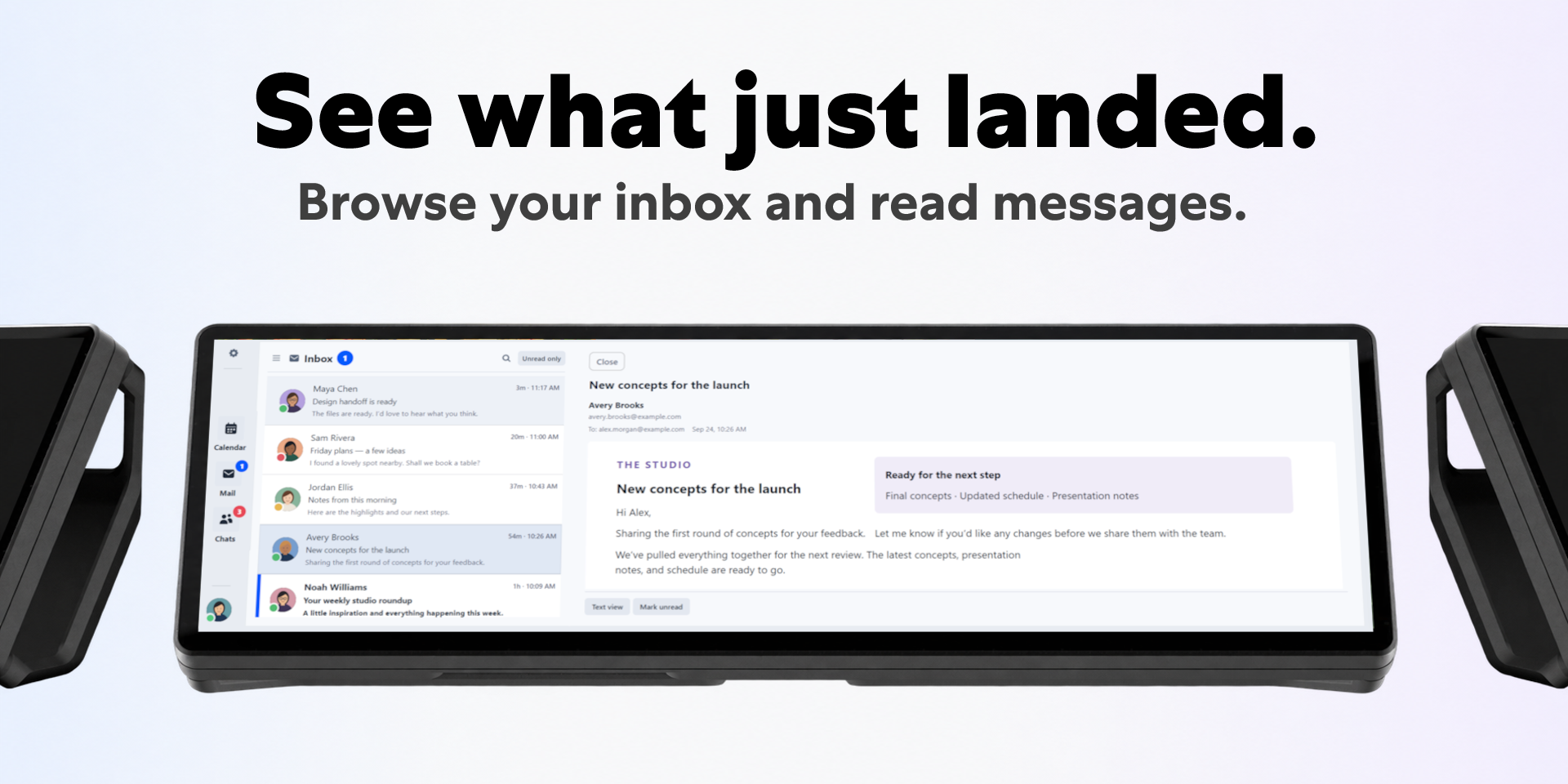
Sidekick for Outlook & Teams keeps your calendar, inbox and supported Teams conversations on the Edge. There are different calendar views, mail folders, read and unread controls, supported meeting invitations and Teams status, with multiple Microsoft accounts and a choice of panels.
We like having that workday information together without spreading it across our monitors. It also runs through Respawn Companion, our desktop hub for connecting and managing supported Respawn Icons widgets. If you already use the hub, adding Sidekick for Outlook & Teams means one less companion app to keep running.
Flow for Outlook & Teams by FlowKits ($20) is honestly pretty much just as good. Its next-meeting countdown, join button, daily timeline and focus controls are worth a look. For us, sharing the hub with our other widgets is the appeal of Sidekick for Outlook & Teams at $14.99.
Control Center
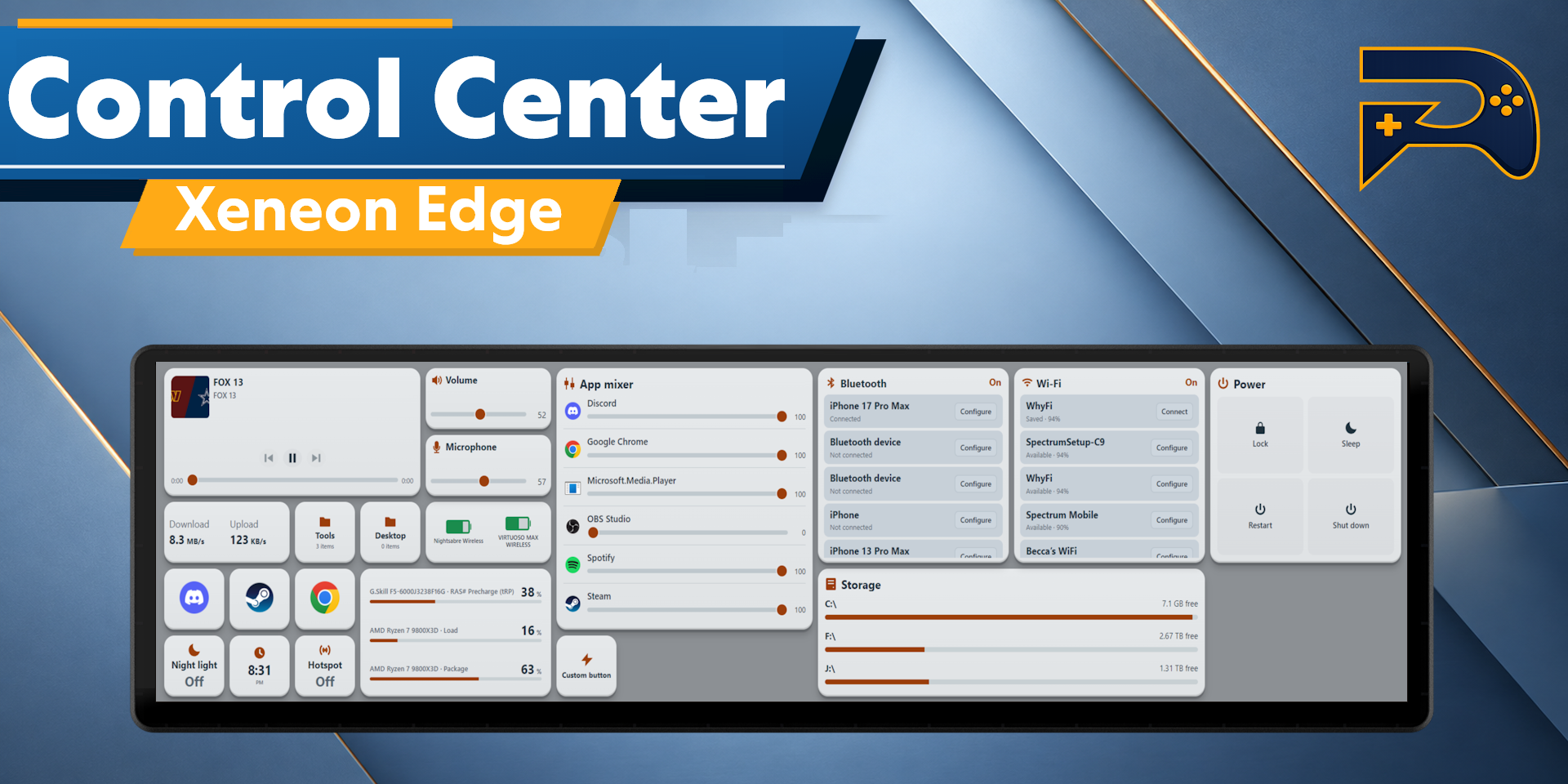
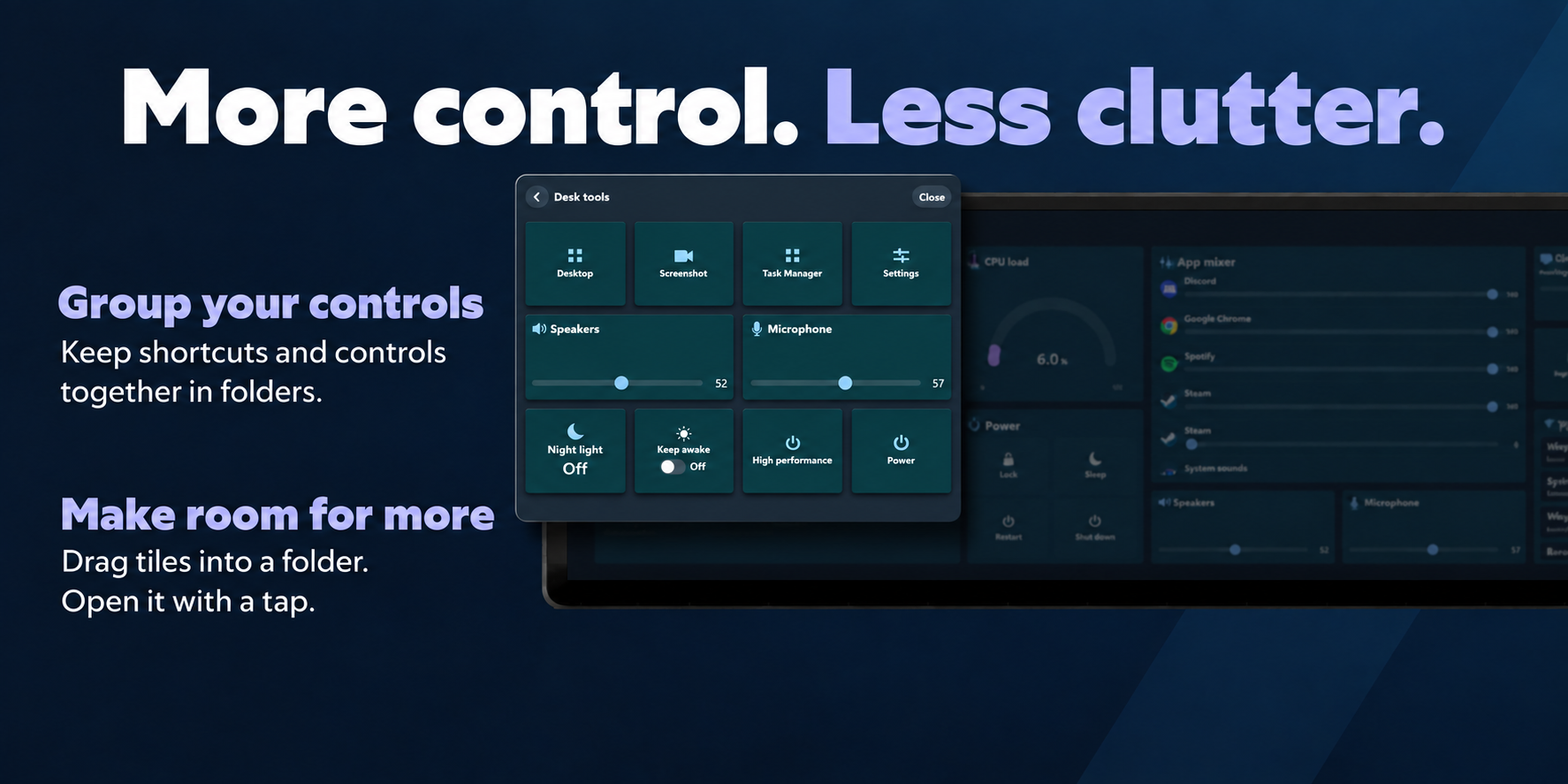
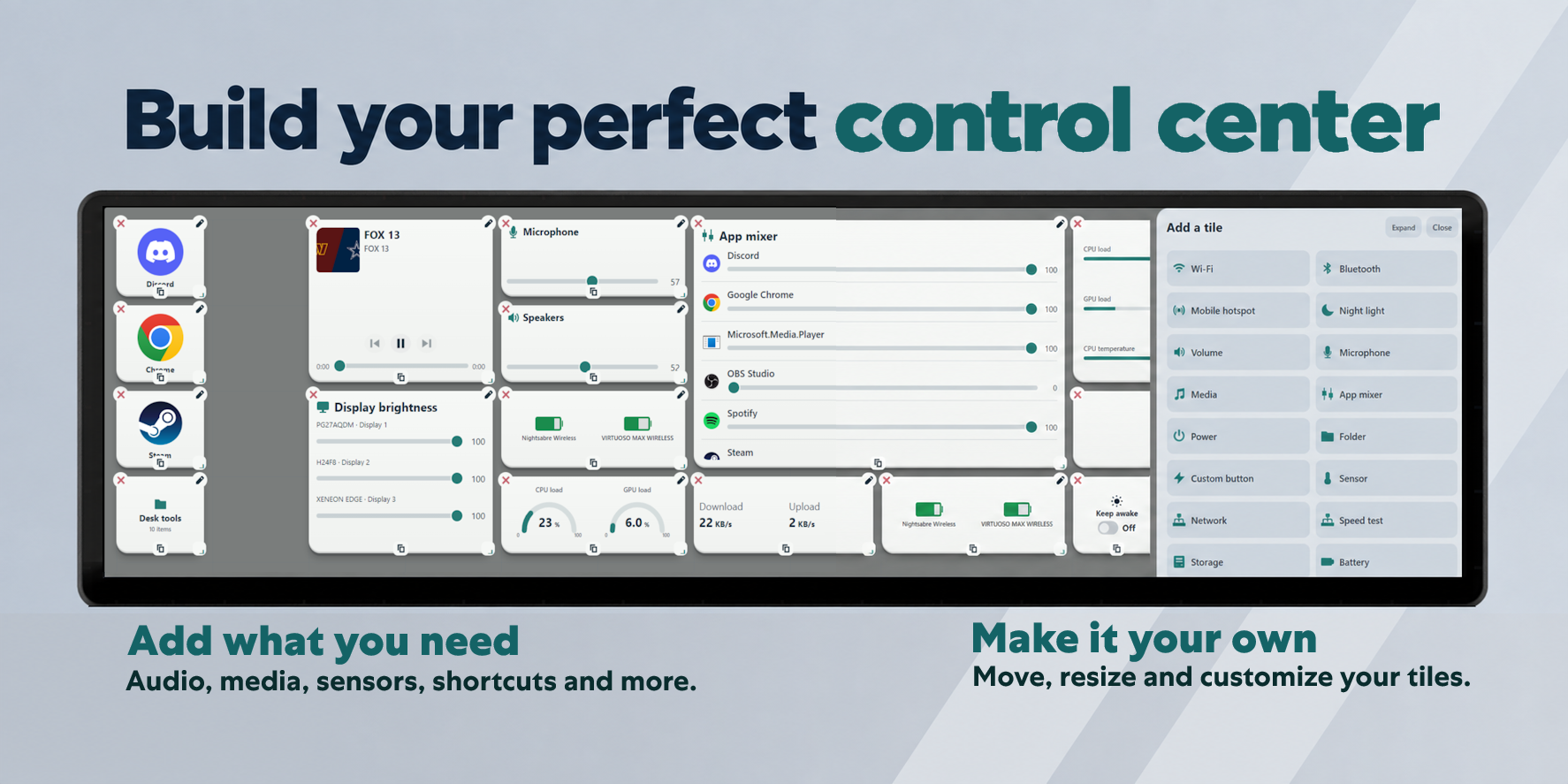
$9.99Control Center puts app volume, media controls, shortcuts and supported system controls together on the Edge. You can move and resize tiles, group buttons into folders, and add available hardware readings or buttons for apps and websites. Custom actions can run scripts or send HTTP requests too.
What we like is building a panel around the things we actually reach for. That might be game launch buttons and audio controls, or work shortcuts beside a few system readings. It’s useful having those little jobs in one place, arranged to suit your desk.
At $9.99, there’s a lot you can do with it. If audio is your main interest, FlowKits’ dedicated Volume Mixer is worth a look too.
Honorable mentions
Sensors
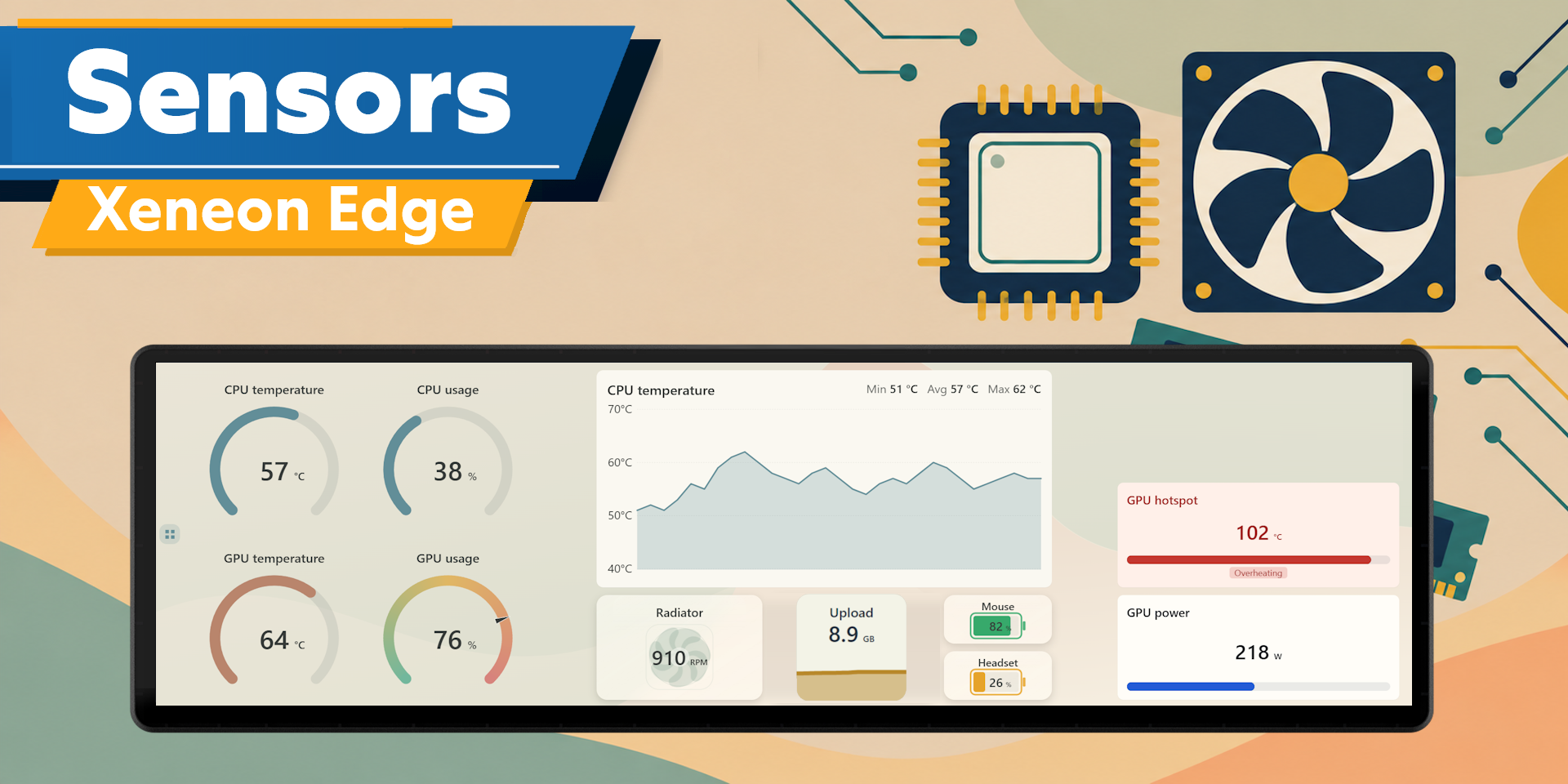
$8.99We like our Sensors widget for building a monitoring panel around the readings we care about. Move and resize tiles, mix graphs, gauges and numbers, and choose colors and labels to match your setup. One large GPU graph with a few smaller readings beside it? You can arrange that.
CORSAIR’s free Sensor Bar covers basic readings, and Hardware Monitor XL by Atomic offers customization too.
Sports score widgets
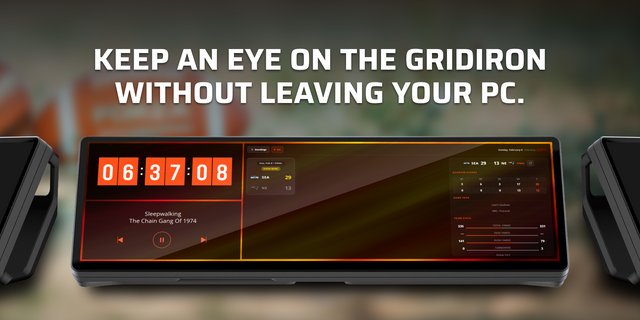
FreeCORSAIR’s free sports widgets are great for following a game while you’re doing something else. The score can sit just below your main monitor, so you don’t have to keep a scoreboard page open or reach for your phone every few minutes.
There’s a separate widget for Football Scores (NFL), Basketball Scores (NBA), Hockey Scores (NHL), Baseball Scores (MLB), plus Matchday Live for soccer. Pick the sport you follow and give it a little space on the Edge. For something that costs nothing, these are well worth having.
Sources & product information
Here are the sources we used.
- Home Assistant Companion: Respawn Icons product page
- Control Center: Respawn Icons product page
- Discord widgets: Marketplace Popular ranking · Sidekick for Discord · Flow for Discord · My Discord Widget · Deckord
- Outlook & Teams: Sidekick for Outlook & Teams · FlowKits product and setup
- Music widgets: Music · Sidekick for Apple Music · Sidekick for Spotify · Music Pro · StreamSpell · Now Playing
- Sensors: Respawn Icons · CORSAIR widget guide · Sensor Bar · Hardware Monitor XL
- Notes and reminders: NOTE BOOK · NOTE//EDGE feature guide · NOTE//EDGE Marketplace price · Reminders · Desk Notes Lite
- Gmail: Flow for Gmail · FlowKits CASA/TAC Security statement · Gmail Connect
- Steam Library: Respawn Icons product page
- Volume Mixer: Marketplace listing · FlowKits setup guide
- NEWS LIVE 2.0: Elgato Marketplace · iConCity product page
- CORSAIR sports widgets: Free widget listings · Football Scores (NFL) · Basketball Scores (NBA) · Hockey Scores (NHL) · Baseball Scores (MLB) · Matchday Live (soccer)