Xeneon Edge Widget For Monitor Control
Bring your display settings together with Monitor Control, an interactive XENEON EDGE widget that lets you adjust connected monitors from one place. Change brightness, switch inputs, adjust…
Respawn Companion
Includes Respawn Companion for game integration and widget configuration.
About Respawn Companion →About This Widget.
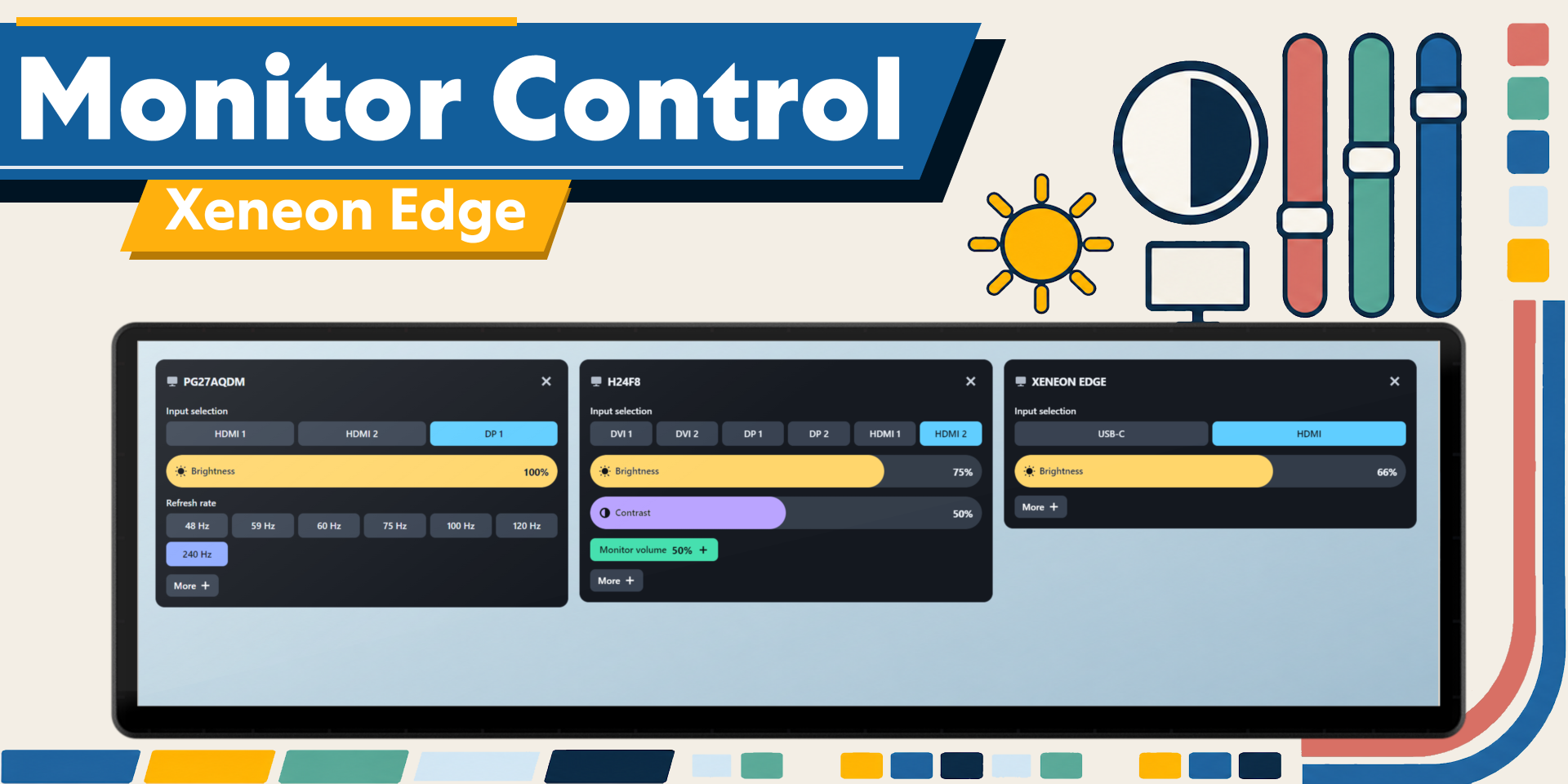
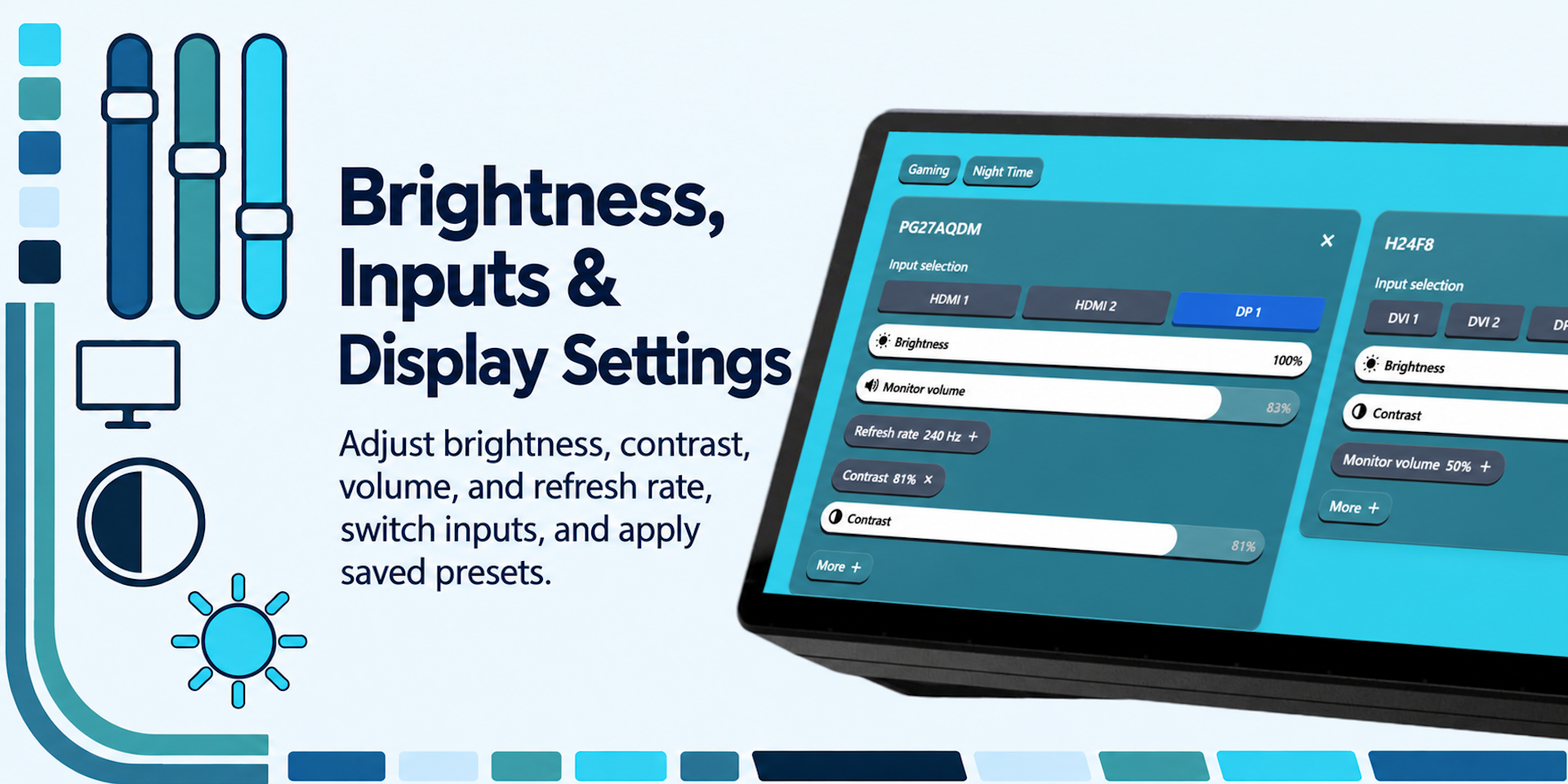
Bring your display settings together with Monitor Control, an interactive XENEON EDGE widget that lets you adjust connected monitors from one place. Change brightness, switch inputs, adjust supported picture settings, and apply saved presets without reaching for your monitor’s buttons.
This is an actively maintained project, and we'll continue to release updates over time. If you have suggestions, we'd love to hear from you.
What’s Included
Access a range of display controls:
- Brightness & Contrast: Adjust supported monitors individually.
- Input Switching: Switch between available HDMI, DisplayPort, USB-C, and other supported inputs.
- Refresh Rate: Choose from the refresh rates available for your connected display.
- Monitor Audio: Adjust supported built-in speaker volume and mute settings.
- Picture Settings: Access available color presets, RGB gain, sharpness, and saturation controls.
- Saved Presets: Save combinations of monitor settings for gaming, nighttime use, or everyday tasks.
Automatically detects connected monitors and shows the controls available for each display. Supported settings vary by monitor.
Touch Controls and Layouts
Use touch-friendly sliders and buttons to adjust your displays directly from XENEON EDGE.
Choose which monitors appear and pin the controls you use most. Expand a monitor’s tile to access additional settings, then collapse it to keep your layout compact.
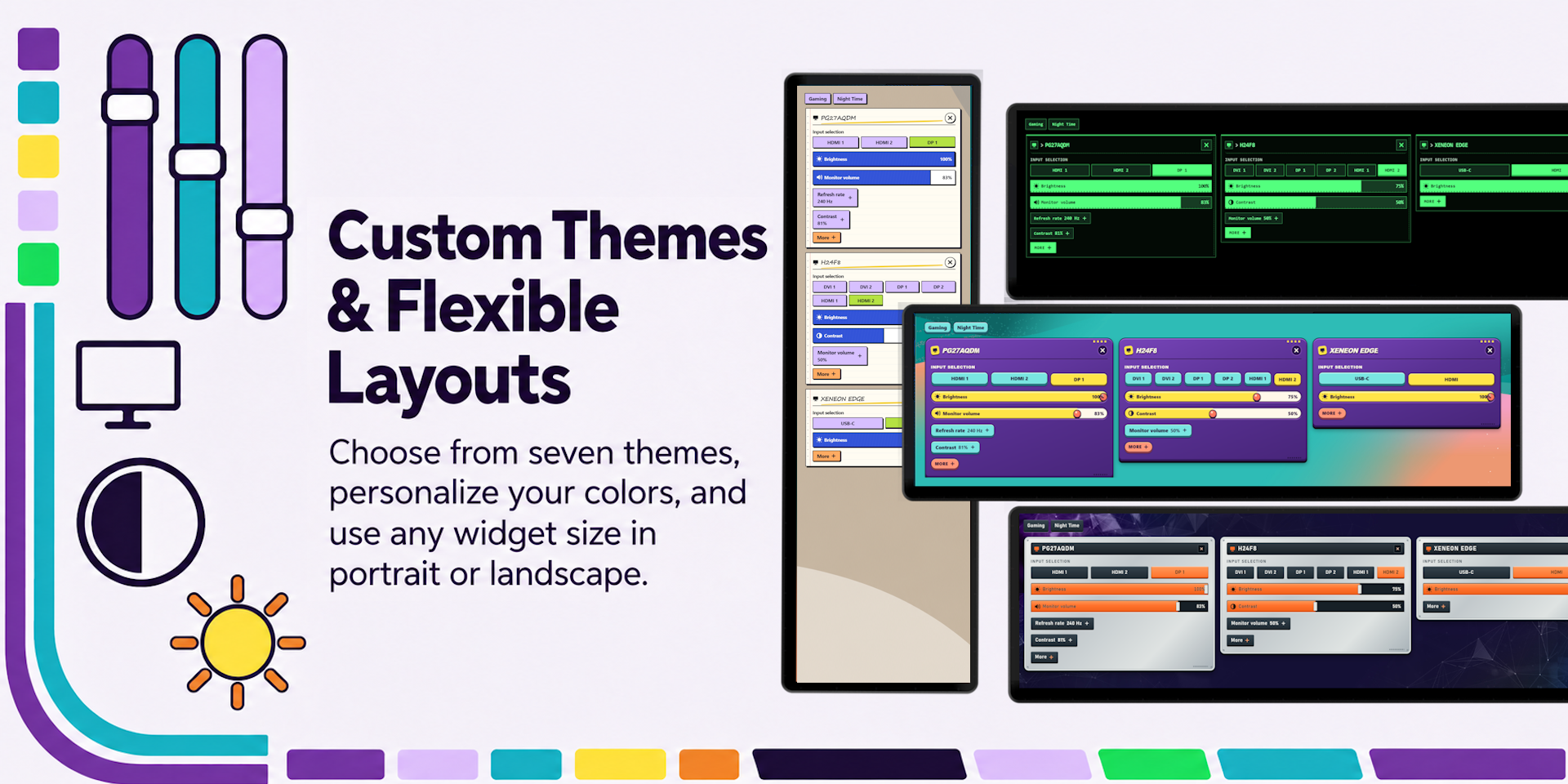
Supports portrait and landscape orientation across widget sizes.
Customization
Choose from seven distinct themes: Liquid Glass, Neon, Flightcase, Arcade, Riviera, Sketchbook, and Terminal.
Customize monitor colors, background transparency, and Liquid Glass intensity. Display supported controls as full sliders or compact buttons to suit your preferred layout.
Includes English, Spanish, French, German, Simplified Chinese, Russian, Italian, and Japanese.
Saved Presets
Create named presets that apply your preferred settings across multiple monitors. Keep separate configurations for different activities and update them as your preferences change.
Preset controls depend on the settings supported by each monitor.
Undo and Reset
Undo recent adjustments or use Reset to restore settings changed through the widget.
Reset uses saved recovery values rather than performing a monitor factory reset. Recovery depends on the monitor remaining connected and accepting the requested settings.
Data and Connectivity
Monitor Control requires our Respawn Companion app which is included for free and can be downloaded here.
Monitor Compatibility
Monitor hardware controls require a display that supports DDC/CI, with DDC/CI enabled in the monitor’s settings. Available controls vary by model, and not all monitors support every feature. Some docks, adapters, and connection types may limit or prevent communication.
Requires a Corsair Xeneon Edge and iCUE. Not compatible with Stream Deck.