

Xeneon Edge Widget For OBS Sidekick — 1.5
Plugins support has arrived. This will be a growing segment, but for the time being we have added support for some of the most popular plugins. Multiple RTMP outputs DistroAV / OBS-NDI Aitum Vertical
What changed
Plugins support has arrived. This will be a growing segment, but for the time being we have added support for some of the most popular plugins.
- Multiple RTMP outputs
- DistroAV / OBS-NDI
- Aitum Vertical
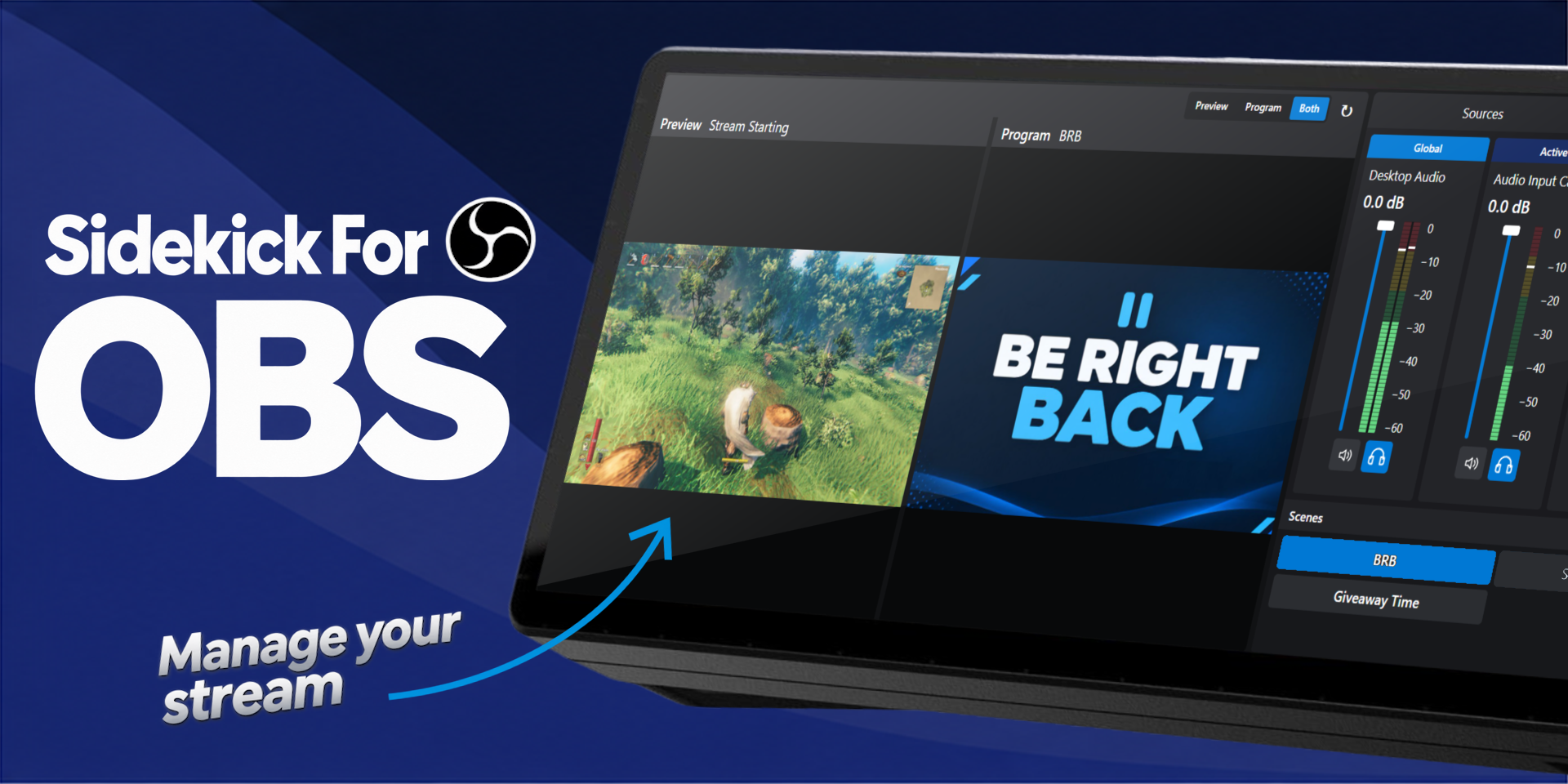
Bring OBS controls to your fingertips with Sidekick for OBS, an interactive XENEON EDGE widget. Keep your scenes, audio, streams, and recordings within reach while you create or game.
What’s Included
Switch scenes, show or hide sources, and trigger scene transitions. Use Studio Mode to prepare your next scene before sending it to Program.
Adjust audio levels, mute individual sources, and toggle audio monitoring. Read live level meters with clear mute and monitoring indicators.
Start or stop streaming, recording, and your virtual camera. Pause and resume supported recordings, and check stream and recording timers, CPU usage, skipped frames and FPS.
In settings, you can adjust the FPS all the way up to 60.
Plugins
We added support for plugins to start with some of the most requested and popular widgets. So far we have included Multiple RTMP outputs, DistroAV / OBS-NDI, and Aitum Vertical. While the widget does not have everything from these plugins, their most used controls are available to access inside the widget.
As long as they are installed and recognized by your OBS, the Plugins tab will appear.
Customization
Choose Program, Preview, or Both to monitor your scenes. Both automatically arranges the two views to fit the available space.
Sidekick adapts to Small, Medium, Large, and XL widget sizes. Larger layouts keep scenes and controls accessible alongside your video; compact layouts organize tools into tabs.
Navigate with touch, mouse wheel, draggable scrollbars, or middle-button panning.
Setup and Connectivity
Import the widget into iCUE. In OBS, open Tools > WebSocket Server Settings and enable the server. Enter the address, port, and password in Sidekick, then select Connect.
Approve access in iCUE when prompted. Sidekick retries while you complete approval and remembers successful connection details locally for automatic reconnection.
Connects directly to OBS.
Disclaimer
Sidekick for OBS is independently developed by Respawn Icons and is not endorsed by, sponsored by, or affiliated with the OBS Project.
Features and compatibility may change with OBS or iCUE updates. All trademarks, logos, and related intellectual property belong to their respective owners.