

Xeneon Edge Widget For OBS Sidekick — 1.4
Added draggable three dot dividers so you can personally adjust the columns you prefer to have larger space. Set the default refresh rate to 30 fps. Added clearer icons, and added 9 new ones. Simplified the connection settings, and make it
What changed
- Added draggable three dot dividers so you can personally adjust the columns you prefer to have larger space.
- Set the default refresh rate to 30 fps.
- Added clearer icons, and added 9 new ones.
- Simplified the connection settings, and make it much easier to understand when you're missing a step during setup.
- Fixed a bug where audio mixers wouldn't appear in the proper position, and would show old ones after changing the scene.
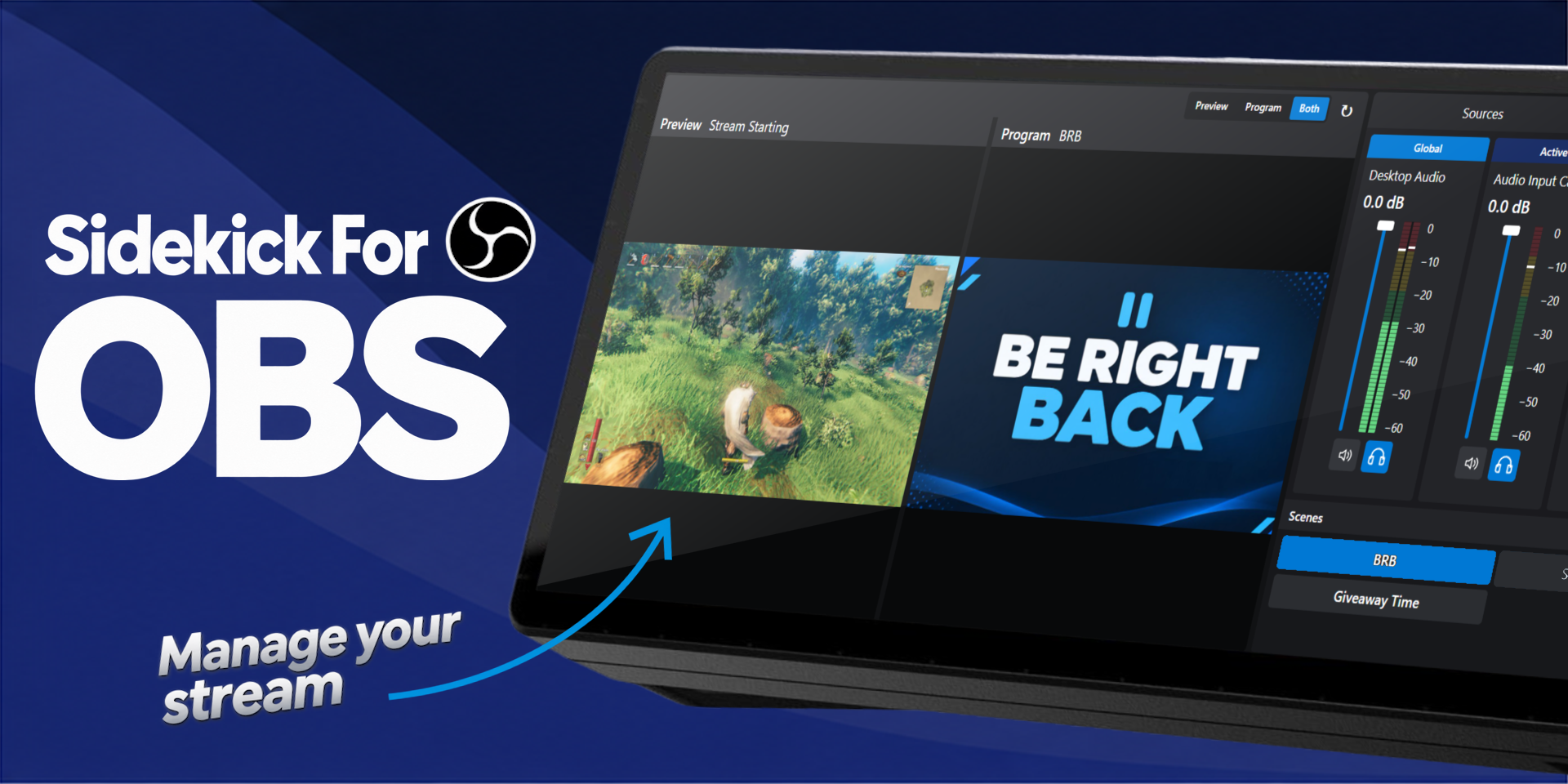
Bring OBS controls to your fingertips with Sidekick for OBS, an interactive XENEON EDGE widget. Keep your scenes, audio, streams, and recordings within reach while you create or game.
What’s Included
Switch scenes, show or hide sources, and trigger scene transitions. Use Studio Mode to prepare your next scene before sending it to Program.
Adjust audio levels, mute individual sources, and toggle audio monitoring. Read live level meters with clear mute and monitoring indicators.
Start or stop streaming, recording, and your virtual camera. Pause and resume supported recordings, and check stream and recording timers, CPU usage, and FPS.
In settings, you can adjust the FPS all the way up to 60.
Customization
Choose Program, Preview, or Both to monitor your scenes. Both automatically arranges the two views to fit the available space.
Sidekick adapts to Small, Medium, Large, and XL widget sizes. Larger layouts keep scenes and controls accessible alongside your video; compact layouts organize tools into tabs.
Navigate with touch, mouse wheel, draggable scrollbars, or middle-button panning.
Setup and Connectivity
Import the widget into iCUE. In OBS, open Tools > WebSocket Server Settings and enable the server. Enter the address, port, and password in Sidekick, then select Connect.
Approve access in iCUE when prompted. Sidekick retries while you complete approval and remembers successful connection details locally for automatic reconnection.
Connects directly to OBS.
Disclaimer
Sidekick for OBS is independently developed by Respawn Icons and is not endorsed by, sponsored by, or affiliated with the OBS Project.
Features and compatibility may change with OBS or iCUE updates. All trademarks, logos, and related intellectual property belong to their respective owners.