
 Respawn Icons
Sidekick for
Teams & Outlook.
Your calendar, inbox, and work chats. Connected in three steps.
Latest release · Windows · iCUE 5.47 or newer
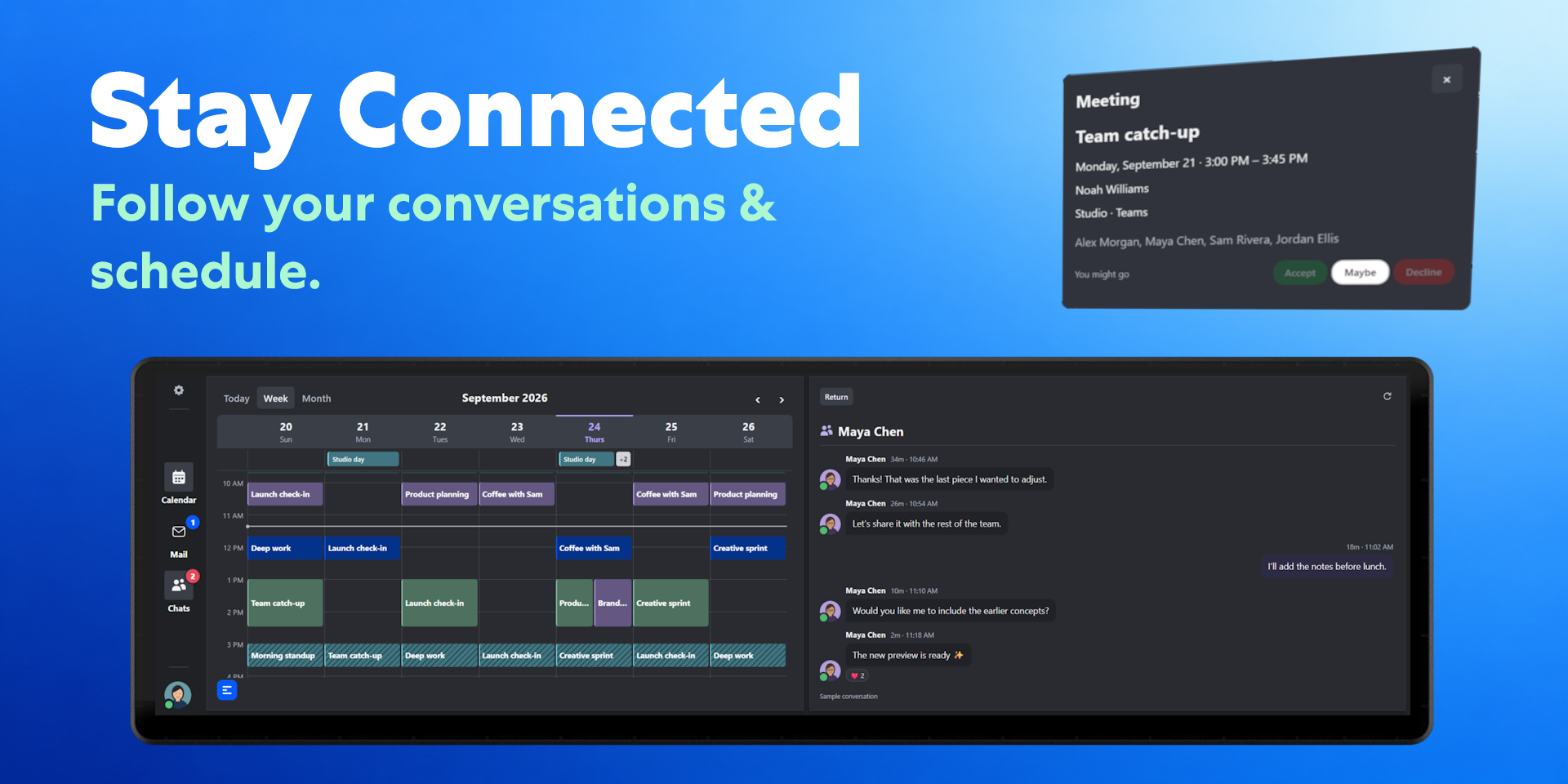
Get connected
Add the widget
Import the .icuewidget file from your product download into iCUE, then add Sidekick For Outlook & Teams to your XENEON EDGE layout.
Allow its local connection to Respawn Companion when iCUE asks.
Start Companion
Run Respawn Companion. Open Add modules → Apps, select Outlook & Teams, and choose Install selected.
Make sure the module says Running. Keep Companion running; it can stay in the system tray.
Sign in with Microsoft
Click Sign in with Microsoft in the widget. Sign in on Microsoft’s page, review the permissions, and return to the widget when complete. Work accounts may have a second prompt for Teams.
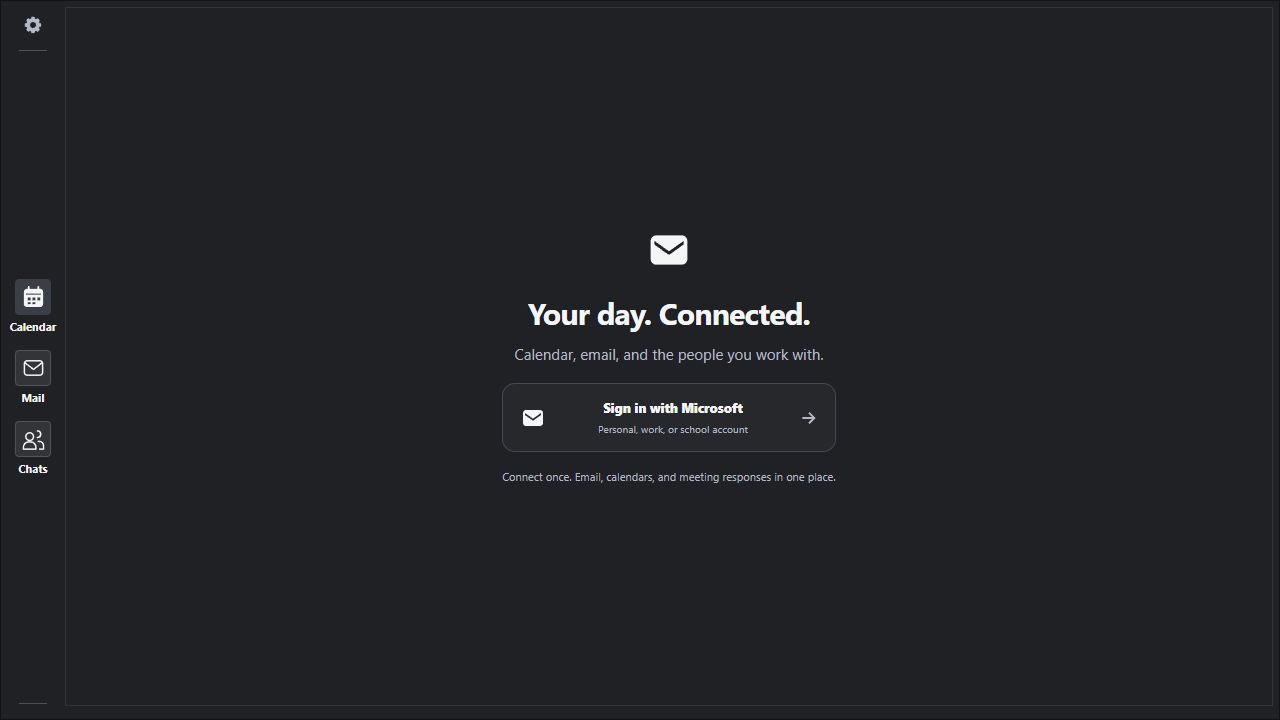
Personal account: Outlook.com mail and calendar. Work/school: Exchange Online mailbox and Teams access for chat. Personal Teams chats are unsupported.
“Need admin approval”?
Send IT the approval section below, or choose Request approval if Microsoft offers it. After approval, sign in again. Your organization’s access policies still apply.
Review & approve
A Windows desktop client using delegated Microsoft Graph permissions: access is on behalf of the signed-in user. No application permissions are requested.
b0a6ec6a-6166-4bec-857e-ab4bdab4138f- In Microsoft Entra, open Entra ID → Enterprise apps → All applications. Find the app and match the ID above.
- Open Security → Permissions. Review the scopes below, then Grant admin consent if approved. A Cloud Application Administrator or another authorized role is required.
- Apply your user/group assignments and Conditional Access policies, then ask the user to reconnect.
If the app is absent, review a pending admin consent request, or initiate Microsoft sign-in from the widget as an authorized administrator. Microsoft’s approval instructions ↗
Permissions at a glance
These are the full grants; some allow more than the widget currently uses. Teams scopes apply to work/school accounts.
Sign-in also uses openid, profile, and offline_access to identify the account and renew access. Full Microsoft permission definitions ↗
Replies open Outlook or Teams. The widget does not send custom messages. Mail.Send and ChatMessage.Send are not requested.
Where your data goes
Mail, calendars, chats, and tokens are not sent to Respawn servers. The module talks directly to Microsoft. Passwords stay on Microsoft’s sign-in page.
Local storage & security details
- Tokens are encrypted with Windows DPAPI for the current Windows user. Settings and account identifiers are stored locally; mailbox and chat content is held in memory.
- The widget uses a loopback service at
127.0.0.1:47835. It is not exposed to your network, but it is not an authentication boundary against other software on the PC. - GitHub is used for module release checks/downloads. Publisher verification and signed executables establish publisher identity; they are not a security assessment.
Quick help
Missing mail, calendar, or chats
Check that the same account works in Outlook on the web and, for work/school chats, Teams. Confirm licensing and approval with IT, then use Settings → Accounts → Manage account → Reconnect.
Updates
Companion checks installed modules when it starts. Choose the module’s Update Available banner to install an update, or use its menu to Check for updates.
Disconnect or revoke access
Remove the account in Settings → Accounts. To revoke Microsoft’s permission grant too, use your Microsoft account’s app-access settings or ask IT to revoke consent in Entra.
Need help? support@respawnicons.com · Privacy policy